Ask Ellie
The Ask Ellie feature provides an AI-powered database assistant within the workbench. Ellie answers questions about PostgreSQL databases, analyzes performance, and searches the pgEdge knowledge base.
Ellie uses a large language model with access to monitoring tools. The assistant can query databases, analyze metrics, inspect schemas, and search documentation on behalf of the user.
The Ask Ellie feature provides the following capabilities:
- The assistant executes read-only SQL queries against monitored database connections.
- The assistant queries historical metrics with time-based aggregation.
- The assistant inspects database schemas across monitored connections.
- The assistant searches the pgEdge knowledge base for documentation.
- The assistant analyzes query execution plans.
- The assistant reviews alert history and alert rule configuration.
- The assistant correlates alerts with configuration changes, restarts, HBA edits, extension changes, and blackout windows through the unified event timeline.
- The assistant stores and recalls persistent memories across conversations.
The Workbench's AI features are available only when the server has a configured LLM provider. See Enabling AI Mode for configuration details.
Opening the Chat
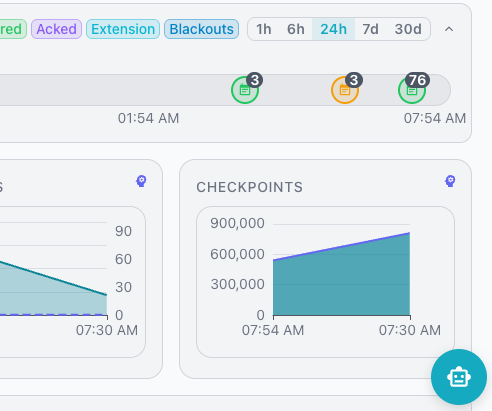
Click the chat button in the bottom-right corner of the workbench to open the Ask Ellie panel. The panel appears alongside the current view without replacing existing content.
Type a question in the input field and press Enter to send. The assistant processes the question and may execute one or more tools before responding. A status indicator shows active tool execution.
Code blocks in the assistant's responses display a copy-to-clipboard button in the top-right corner. Click the button to copy the code block contents.
Use Shift+Enter to add a new line without sending the message.
Conversation History
The workbench stores conversation history in the PostgreSQL datastore and associates each conversation with the authenticated user.
Click the history button in the chat panel header to view previous conversations. The history overlay displays all saved conversations sorted by most recent update.
The following conversation management actions are available:
- Click a conversation to load its full message history.
- Use the context menu to rename or delete a conversation.
- Click the plus button in the header to start a new conversation.
- Use the Clear All button to remove all conversations.
Downloading Conversations
The chat panel header includes a download button next to the History, New Chat, and Close buttons. Click the download button to save the current conversation as a markdown file.
The exported file includes the following content:
- A title containing the conversation name.
- The date of the export.
- All user and assistant messages in order.
The workbench saves the file with the name format ellie-chat-{YYYY-MM-DD}.md,
where the date reflects the day of the download.
The interface disables the download button when the conversation contains no messages, or while the assistant is generating a response.
Available Tools
Ellie has access to monitoring tools that execute automatically during a conversation. The following table describes the available tools:
| Tool | Description |
|---|---|
list_connections |
Lists all monitored database connections with IDs, names, and status. |
query_database |
Executes a read-only SQL query on a monitored database. |
count_rows |
Counts rows in a specified table with optional filtering. |
test_query |
Validates SQL query syntax without executing the query. |
query_metrics |
Queries historical metrics with time-based aggregation. |
query_datastore |
Executes read-only SQL against the monitoring datastore. |
search_knowledgebase |
Searches the pgEdge documentation knowledge base. |
read_resource |
Reads MCP resources for backward compatibility with older clients. |
generate_embedding |
Generates text embeddings from input text. |
get_schema_info |
Retrieves schema information from a monitored database. |
similarity_search |
Performs vector similarity search using pgvector extensions. |
execute_explain |
Runs EXPLAIN ANALYZE on a query for performance analysis. |
list_probes |
Lists available monitoring probes. |
describe_probe |
Provides details about a specific monitoring probe. |
get_alert_history |
Retrieves historical alerts for a connection. |
get_alert_rules |
Retrieves current alert rules and thresholds. |
get_metric_baselines |
Retrieves statistical baselines used for anomaly detection. |
store_memory |
Stores a persistent memory for future recall. |
recall_memories |
Searches stored memories by semantic similarity. |
delete_memory |
Removes a stored memory by its ID. |
get_blackouts |
Queries blackout periods and recurring schedules. |
get_timeline_events |
Queries the unified incident-investigation timeline of configuration changes, restarts, extension changes, alerts, and blackouts. |
Chat Memory
Ellie can store and recall information across conversations using persistent memories. Memories allow Ellie to remember facts, preferences, and instructions that persist beyond a single conversation.
What Memories Are
A memory is a persistent piece of information that Ellie saves to the PostgreSQL datastore. Each memory contains a text content field, a category, a visibility scope, and an optional pinned flag. The system associates each memory with the authenticated user who created the memory.
Categories
Categories organize memories by type. The following categories are available:
- The
preferencecategory stores user preferences such as output format or language style. - The
factcategory stores factual information about databases, servers, or infrastructure. - The
instructioncategory stores standing directives that guide how Ellie responds. - The
contextcategory stores background information about projects or environments. - The
policycategory stores organizational rules and standards that Ellie should follow.
Scope
Each memory has a visibility scope that controls who can access the memory. The two available scopes are:
- The
userscope makes a memory private to the user who created the memory. - The
systemscope makes a memory visible to all users in the organization.
The default scope is user when you don't specify a scope.
Storing system-scoped memories requires the store_system_memory admin
permission. Administrators assign this permission to groups through the admin
panel.
Pinned Memories
The server automatically includes a pinned memory in every conversation by appending it to the system prompt, so Ellie always has access to the pinned content. Use pinned memories for critical information that should inform every response.
Memory Tools
Ellie uses three tools to manage memories during a conversation.
The store_memory tool saves a new memory to the datastore. The tool requires
a content string and a category. The scope and pinned parameters are optional.
The recall_memories tool searches stored memories using semantic similarity
when the system has embeddings enabled. The tool falls back to text matching
when embeddings are unavailable. The search always includes pinned memories
regardless of the query.
The delete_memory tool removes a memory by its numeric ID. A user can only
delete memories that the user owns.
Example Interactions
The following examples show how to use chat memory with Ellie.
To store a preference, send a message such as:
Remember that I prefer JSON output for query results.
Ellie calls the store_memory tool with the category preference and stores
the memory for future recall.
To recall stored memories, send a message such as:
What do you remember about my preferences?
Ellie calls the recall_memories tool and returns matching memories from the
datastore.
To store a pinned instruction, send a message such as:
Always check replication lag before recommending
schema changes. Pin this as an instruction.
Ellie stores the memory with the instruction category and sets the pinned
flag to true.
User Context
Ellie automatically receives information about the current user at the start of each conversation. This information includes the username, display name, group memberships, and effective permissions. Ellie uses this context to personalise responses.
Managing Memories
The settings panel includes a Memories section under the AI category. This panel displays all memories visible to the current user, including private user-scoped memories and shared system-scoped memories.
The panel provides the following actions:
- Toggle the pinned switch to control whether the server automatically includes a memory in every conversation.
- Delete memories that you no longer need using the delete button.
Deleting system-scoped memories requires the store_system_memory admin
permission.
Running Without AI
When the server starts without valid LLM credentials, the Workbench automatically hides the Ask Ellie chat button and panel. The web client detects the server's capabilities at startup and removes all chat UI elements. Users do not see any error or disabled state; the chat feature is simply absent from the interface.
Related Documentation
- Using AI Features covers AI-powered summaries of database health and status.
- AI Alert Analysis describes the AI analysis feature for individual alerts.